Which Android Privacy Settings Are You Forgetting?
11 min read Which Android privacy settings are you missing? Discover hidden permissions, tracking controls, and quick tweaks to better protect your data. February 12, 2026 09:46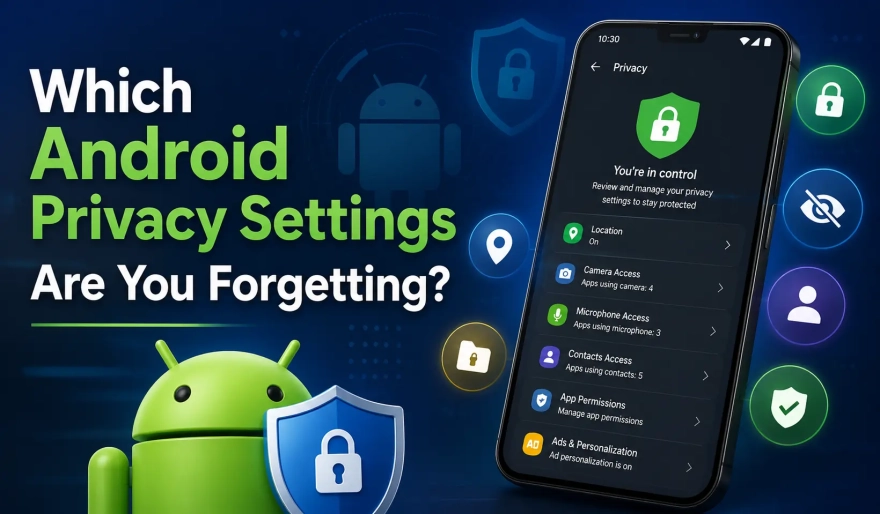
The best thing about Android is the customizability. It’s easy to install all sorts of apps and connect different accounts for the ultimate personal phone experience.
Like all modern smartphones, Android phones can be vulnerable and leak a lot of your personal information to apps, services, and other third parties if you’re not careful.
Thankfully, Android’s customizability extends to privacy. There are several settings you can fine-tune to maybe not eliminate, but at least minimize how much of your data is shared—settings you probably forgot about.
Below is a list of forgotten Android settings you should double-check to protect your personal information better.
App Permissions
Too many users are too liberal with granting apps permission, reflexively tapping “Allow” whenever they request access to your files, camera, microphone, contacts, or location.
In fact, older research from 2017 showed that only 35% of Android users read all the permissions before installing an app.
However, you can always revoke these permissions for those apps that don’t need them. For example, a messaging app might need access to your files if you send photos regularly, but it shouldn’t need access to your location.
To revoke permissions, go to Settings > Apps > (App) > Permissions.
On modern Android operating systems, you should also have a Privacy Dashboard for an overview of which apps have which permissions.
Special App Access: High-Risk Permissions You Should Audit
Beyond these standard app permissions, there is Android’s Special access menu. You can find it under Apps > Special access, and it lists powerful permissions that go beyond camera, microphone, or location access.
There are over a dozen special access permissions listed, but some of the most important include:
All files access: Allows the permitted apps to read, modify, or delete all files on the device.
Usage access: Allows the permitted apps to observe the other apps you use, including other usage data such as how often you open them, your service provider, and language settings.
Wi-Fi control: Allows the permitted app to turn your Wi-Fi connection on or off.
Many people don’t know these special access permissions exist, despite being incredibly powerful.
Revoke any special access that isn’t important for how an app works. Take the time to go through each setting, and you can significantly reduce any unnecessary data exposure.
Location: Precise vs Approximate
One particular permission many users aren’t aware of is the option to grant apps access to either your precise or approximate location.
Precise location uses your GPS to pinpoint you on the map, down to the street level. On the other hand, your approximate location is determined by Wi-Fi and nearby cellular towers.
Most users think location access can only be turned on or off, but giving apps an approximate location is actually a happy medium for many people.
After all, a lot of people enjoy the convenience and personalization that comes with location access (such as receiving local recommendations or nearby services), but are simultaneously uncomfortable with apps knowing where their exact location is.
Lock-screen Notifications and Autofill
Of course, you don’t just need to protect your privacy from intrusive apps—you also need to protect it from other people’s prying eyes.
Lock-screen notifications can unintentionally expose private information, such as text messages, to onlookers. While having them can definitely be convenient, there is undeniably some risk.
To turn them off, go to Settings > Notifications.
In the same vein, autofill features can also unintentionally reveal your information when logging in or filling up forms.
The location of this setting can depend on your Android phone brand; on Samsung, for example, it’s under Settings > Security and Privacy > More security settings > passwords, passkeys, and autofill.
Sideloading and Play Protect
Many Android users install APKs for apps not distributed through official app distributors. For instance, some sideload a VPN APK to bypass Google Play’s security checks and employ additional privacy measures or custom configurations.
Don’t forget to verify sources and information before downloading.
However, sideloading will always carry a certain degree of risk, as you never know how these apps can affect your privacy.
To mitigate this risk, go to the “Install Unknown Apps” setting. Here, you can see which apps—aside from official stores such as the Google Play Store or the Galaxy Store—are allowed to install other apps.
Keep this permission off for all apps. Only enable it when you’re about to download an APK from a trusted source, then immediately revoke it afterward.
It’s equally important to keep “Scan apps with Play Protect” on in the Google Play Store’s settings to ensure all installed apps are routinely checked for potentially harmful behavior.
Default Apps and Accessibility Services
Ensure that all your default apps—or the apps that automatically open links, send texts, or make calls—are all trusted apps.
Having an unsafe browser as your default can result in links being redirected through trackers, malicious websites opening automatically, or your personal data being shared without your consent or knowledge.
Go to Apps > Default apps to confirm that all default apps are trusted apps. Change (and remove) any unknown, untrusted, or even unupdated apps.
Accessibility services also need to be checked. Apps with accessibility access can, for example, read on-screen text, tap buttons, or observe other apps currently open.
While they’re critical for users with disabilities, ensure that these services are turned off if you don’t need them. If you do, ensure that only trusted apps have accessibility access.
Camera, Microphone, and Sensor Access
Modern Android versions display small icons at the top of the screen whenever an app is using your camera or microphone.
If you suddenly notice these indicators, even if you didn’t use your camera or microphone yourself, immediately go to your Privacy Dashboard to see which app accessed them and when.
Unexpected background access can mean that an app has more access than you might’ve known (or would’ve preferred).
Beyond the camera and microphone, some apps even use motion and environmental sensors. Some mobile games use the gyroscope, some weather apps use the barometer, and some photo apps use your ambient light sensor. Check which apps have permissions for these as well.
Conclusion
Android allows you to customize virtually every aspect of your phone, so take advantage of it. By taking a look at these settings, you can have far greater control of your data while still enjoying your phone’s various features.
User Comments (0)
Popular Apps